
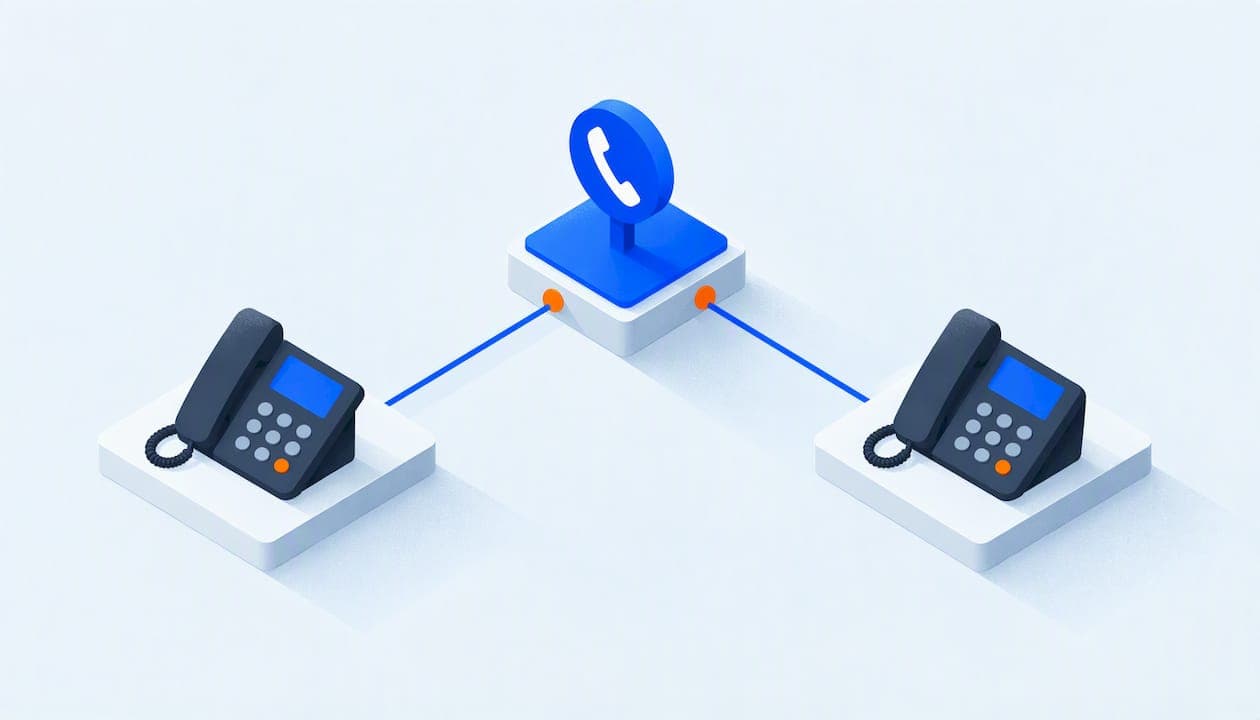
Shared line appearance (SLA, also called shared call appearance or SCA) lets several IP phones share one extension or phone number. Each phone shows the line's status, and anyone in the group can answer, hold, retrieve or join a call from their own desk. It copies how old key systems worked, with the lines on the phone and a light that told you who was talking. This guide explains how it works, what you need, how to set it up and test it, and when a simpler feature does the job better.
TL;DR
- Shared line appearance puts one extension on multiple phones, and every phone sees whether the line is idle, ringing, in use or on hold.
- Hold can be public (anyone can pick the call up) or private (only the person who parked it can).
- You need a provider that supports it, compatible SIP phones, and one shared account with matching settings on every phone.
- Most setup problems come from mismatched credentials, wrong line settings or blocked network traffic, and all of them are easy to check.
- If you only need several phones to ring for one call, a ring group is simpler and often enough.
Table of Contents
- What shared line appearance actually is
- How calls behave on a shared line
- When a small business needs it
- What you need before you start
- How to set up a shared line, step by step
- How to test it before you rely on it
- Common problems and how to fix them
- Shared line appearance vs. ring groups, call forwarding and delegation
- Our view: start with how your team answers the phone
- What PJL Telecom offers
- Choosing a provider: questions to ask
- FAQ
- Sources
What shared line appearance actually is
The technical standard describes it as a way for a group of phones to share a single SIP address, with incoming calls offered to all of them and any one able to answer. The group's phones learn each other's call status, so they can show it to the user. That is the core of the IETF specification for shared appearances, published in 2015.
In plain terms: one number, many phones, one shared picture of what is happening on that number.
On a phone that supports it, registered devices can see the line's status. Depending on the feature, they can also place, answer, hold, retrieve, barge into or pull calls, as Yealink's support documentation explains for its phones.
The open-source Asterisk project describes SLA as a way to emulate key system behavior on modern IP telephony. If you have ever worked in an office where the receptionist and two managers could all see line 1 blinking, you have used the idea before.
How calls behave on a shared line
The value of the feature is in what happens after the phone rings. Here is how a typical shared line treats each stage of a call.
Incoming calls
A call to the shared number rings on every phone in the group. The first person to pick up takes it. The other phones stop ringing and show the line as busy. The RFC describes this as a single line extension, much like the extensions in a home with a landline.

Active calls
While someone is on the call, everyone else can see it. Depending on the phone and the settings, a colleague can barge in. Per Yealink's documentation, that turns the call into a three-party conference. They can also pull the call to their own phone. Pulling is useful when you start a call at the front desk and need to finish it in the back office.
Held calls: public or private
A call can be put on public hold, so any phone sharing the line can retrieve it. It can also be put on private hold, so only the person who parked it can pick it up again. The same Yealink page covers both modes.
The choice matters more than it seems:
- Public hold suits a front desk or a shop counter, where whoever is free should grab the caller.
- Private hold suits a call that belongs to one person, such as a client who asked for a specific account manager.
Moving a call between phones
The standard also covers a simple scenario: you start on one phone, put the call on hold, walk to another phone and pick it up by its appearance number. That is handy in a building where people move between a desk, a warehouse counter and a conference room.
When a small business needs it
Shared line appearance earns its place in a few situations:
- Front desk coverage. A receptionist and a backup both see the main line and can take over without a transfer.
- Boss and assistant setups. An owner and an office manager share a direct number, and the assistant can see when the owner is on a call.
- Small teams that answer one number. A three-person shop where whoever is free picks up the shop line.
- Open floors and shared spaces. A warehouse, a clinic hallway or a classroom office where one phone is not enough.
- Hotels and motels. A front desk and a back office, or a night manager's phone, all watching the same main line. We cover that in more depth in our hotel phone system guide.
If your situation is "I want everyone to hear the phone ring," you may not need SLA at all. See the comparison below.
What you need before you start
Shared line appearance is not a universal setting. It depends on three layers working together.
1. A phone service that supports it
The feature has to exist on the provider's side. Some systems call it shared line appearance, others call it shared call appearance, bridged line appearance or simply shared line. Ask your provider which of these it supports and whether it is included in your plan or billed as an add-on. Pricing models differ widely here, which is one reason to look for a flat rate with no add-on fees.
2. Phones that support it
The desk phones must support the feature on their own firmware. Most business-grade SIP phones from the major manufacturers do. Cheap or very old handsets may not. Check the phone model's admin guide for "shared line," "SCA" or "BLA" settings before you buy a batch of them.
3. A clean network
Status lights depend on small signaling messages moving between the phones and the server. A network that drops or delays SIP traffic gives you phones that ring but do not show line status. Stable internet, a decent router and correct settings for voice traffic make a visible difference.
Checklist before you begin
- Which extension or number will be shared
- Which phones will share it, and their models
- Whether each person also needs a private extension of their own
- Whether hold should be public or private by default
- Who has admin access to the phone system and the phones
How to set up a shared line, step by step
Exact menus differ by provider and phone, so treat this as the sequence and not a click path. Your provider's admin portal or support team will have the specifics.
- Create or choose the shared extension. This is the number everyone will share. Give it a clear label, such as "Front Desk."
- Enable shared line on the account. In many systems this is a setting on the extension, with a list of devices allowed to register against it.
- Register each phone to the shared line. Each phone needs the shared account's credentials entered on one of its line keys. The per-person extensions stay on other keys.
- Match the shared line type on every phone. If your phones have a setting for the shared line mode, make it the same on all of them. The setting names differ between brands, so use the manufacturer's guide.
- Choose public or private hold. Set the default that fits the way your team works.
- Label the keys. A line key labeled "Front Desk" saves training time.
- Test it (see the next section).
The RFC's stated design goal is that the mechanism needs minimal configuration, so phones registering against the group address can join without anyone listing the members by hand. In practice, how close you get to that depends on your provider and phones.
How to test it before you rely on it
Do not trust a status light you have not tested. Run through this with two or three people at their desks:
- Call the shared number from a mobile phone. Every phone should ring.
- Answer on phone A. Phones B and C should stop ringing and show the line as in use.
- Put the call on hold from phone A. Check that phone B can retrieve it if you chose public hold, and cannot if you chose private.
- Place an outgoing call from the shared line on phone B. Phone A should show the line as busy.
- Try to barge in or pull the call from phone C, if your setup allows it.
- Repeat the test with someone off the office network, such as on a mobile app, if they are meant to be in the group.
Write down what works. That sheet becomes your onboarding note for new hires.
Common problems and how to fix them
| Symptom | Likely cause | What to check |
|---|---|---|
| One phone does not ring | Not registered to the shared line | Confirm credentials and that the line key is enabled |
| Phones ring but show no status | Shared line mode mismatch, or blocked signaling | Match the setting on every phone, then check the router and firewall |
| Calls cannot be retrieved from hold | Private hold is active | Switch to public hold or ask the person who parked the call |
| Status lights are slow or wrong | Network delay or an unstable connection | Test the internet connection and restart the phones |
| Only the first few phones work | The system limits the number of devices | Ask your provider about the maximum per shared line |
| One-way audio on a joined call | Network address translation or firewall issues | Review voice settings on the router, or ask your provider's support |
When something goes wrong, change one thing at a time and retest. If two phones behave differently, compare their settings side by side. That finds most issues in minutes.
Shared line appearance vs. ring groups, call forwarding and delegation
These features sound alike and solve different problems.
| Feature | What it does | Best for |
|---|---|---|
| Shared line appearance | One number on many phones, with shared status, hold and call pickup | Front desks, assistants, small teams that hand calls around |
| Ring group | Rings several extensions for one call, usually without shared status | Sales or support teams that just need someone to answer |
| Call queue | Holds callers in line and distributes them to available agents | Busier teams with steady call volume |
| Call forwarding | Sends calls to another number or device | One person who is out of the office |
| Delegation | Lets one person take calls and act on behalf of another | Executives and assistants, often tied to a specific platform |
A useful rule: if people need to see each other's calls, think shared line. If they only need to hear the phone and answer, a ring group is enough. If callers will wait, you want a queue.
Our view: start with how your team answers the phone
We set up phone systems for small businesses, non-profits, schools and hotels, and the question we ask first is rarely "Which feature do you want?" It is "Who picks up when the phone rings, and what happens next?"
A lot of small teams ask for a shared line because they remember the lit buttons on an old office phone. Sometimes that is exactly right. Often, though, a ring group with a clear voicemail and a mobile app does the same job with less to configure and less to break. The more phones and settings you tie together, the more places a mistake can hide.

Our approach is to start with the simplest setup that matches how your people work, then add complexity only where it earns its keep. Our system includes ring groups, call queues, auto-attendants, call recording, conferencing and voicemail-to-email in one flat rate, so you are not weighing every feature against a per-user fee. You can see the full list on our features page, and our blog on small business VoIP features goes through what matters most.
We also think setup should not be your problem. That is why we handle configuration, same-day system changes and support from real people, around the clock.
— User
What PJL Telecom offers
PJL Telecom provides flat-rate, cloud-based business phone systems with unlimited users and no per-user fees. Setup is included, there are no contracts, and support is available 24/7 from real people. Pre-configured Grandstream desk and cordless phones are available, as are analog adapters for older equipment.
- Business: from $125 per month, flat, regardless of user count.
- Home Office: $25 per month.
- Hotels and motels: from $125 per month per property.
If you want to talk through how your front desk or team should answer calls, start with our pricing page, or look at our managed business phone systems. Hotel and motel operators can go straight to hotel phone systems.
Choosing a provider: questions to ask
Whether you choose us or someone else, ask these before you sign anything:
- Is shared line appearance supported, and is it included or an add-on?
- Which desk phone models are supported and tested?
- Does the provider supply phones already configured?
- What is the maximum number of phones on one shared line?
- Who handles it when the status lights stop working, and how fast?
- Are there contracts, setup fees or per-user charges?
- How does emergency calling work for every phone on the line? Read the provider's E911 terms, such as ours, because the dialing location for each device matters.
A good provider answers these directly and in writing.
FAQ
What is the difference between shared line appearance and shared call appearance?
In most systems they describe the same idea: several phones sharing one line with visible status. Vendors choose different names, and some use "bridged line appearance" as well. Check your provider's documentation for the exact term and behavior.
Can every phone on a shared line make calls at the same time?
It depends on the system. Many devices with a shared line can place or receive new calls and resume held calls at the same time, but limits on simultaneous calls differ by provider and plan. Ask yours how many concurrent calls the shared line allows.
Is shared line appearance the same as call forwarding?
No. Forwarding sends a call to another destination, and the original phone usually stops being involved. A shared line keeps every phone in the group involved, so each one sees the call and can answer, hold or join it.
Do I need special phones for SLA?
Yes, in most cases you need SIP phones that support shared line or shared call appearance in their firmware. Business desk phones from major manufacturers usually do. Confirm the model with your provider before you buy.
How do I set up SLA without a technical background?
Ask your provider to configure it for you and to send the phones pre-programmed. Then run the test sequence in this guide with your team. If the status lights do not match what you expect, start with the settings on each phone and the network.
Sources
- RFC 7463: Shared Appearances of a SIP Address of Record
- Shared Line, Yealink Support
- Introduction to Shared Line Appearances (SLA), Asterisk documentation