
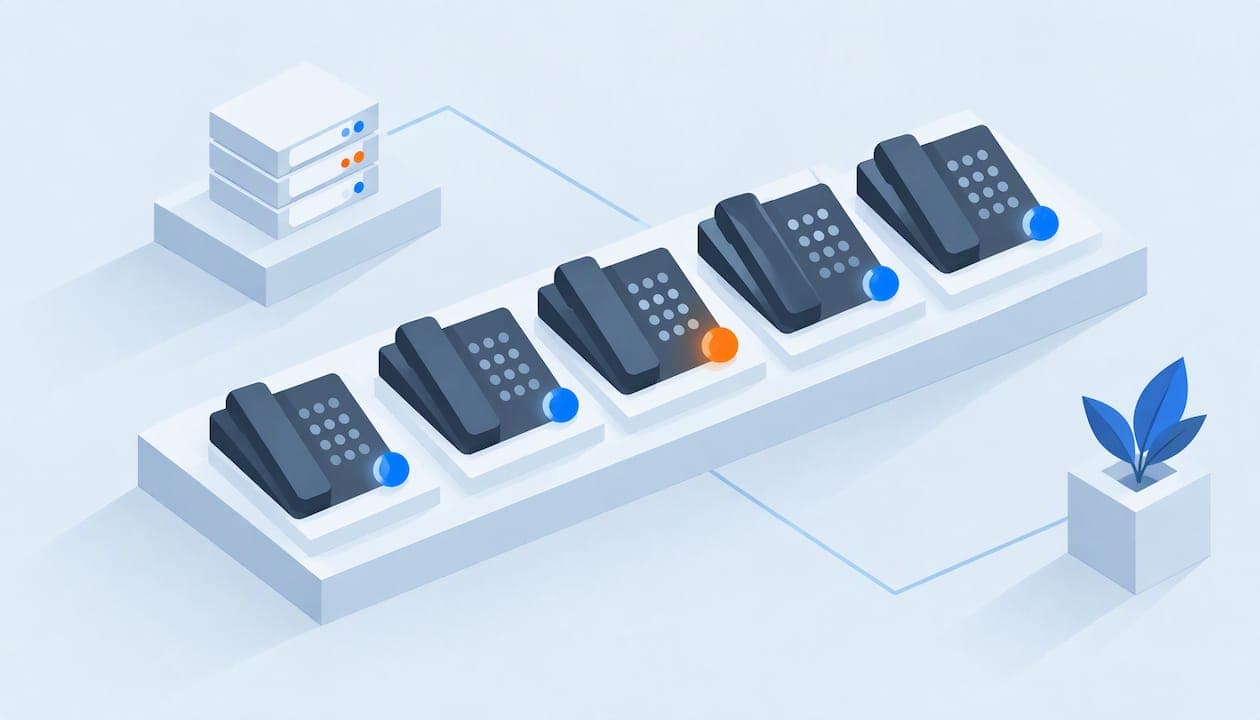
Busy Lamp Field, or BLF, is a phone feature that shows you whether a coworker's extension is free, ringing or on a call. The status appears as a light on a spare key of your desk phone, or as a colored dot next to a name in a softphone. Glance at it, and you know whether to transfer the call or take a message.
This guide explains what BLF stands for, what each light means (including the "talking" status people ask about), how it is set up, where it stops working, and what a small business, school, non-profit or hotel should check before relying on it.
TL;DR
- BLF stands for Busy Lamp Field: a light or indicator on an IP phone or softphone that shows the live status of another extension.
- Typical colors: green is idle, steady red is in use, flashing red is ringing. Exact colors vary by brand and model, so check your phone's manual.
- Beyond watching, a BLF key can usually be pressed to speed-dial, pick up a ringing call, park a call or transfer it.
- BLF generally works only between extensions on the same phone system, and each phone can monitor a limited number of lines.
- On a cloud phone system with flat-rate pricing, putting every employee on a BLF key does not add a per-user cost.
Table of Contents
- What BLF stands for and what it does
- What the BLF lights mean
- Where BLF appears
- What a BLF key can do besides light up
- How BLF works behind the scenes
- How to set up BLF
- Limits to know before you rely on it
- Who gets the most out of BLF
- What to check when choosing a phone system
- Our perspective on BLF
- Pre-configured phones and flat pricing from PJL Telecom
- Troubleshooting BLF that is not working
- FAQ
- Sources
What BLF stands for and what it does
BLF means Busy Lamp Field. The name comes from the old key systems, where a lamp beside a button lit up when that line was busy. Today the lamp is usually an LED beside a programmable key on an IP phone, or a colored indicator next to a contact in a softphone or web client. Some guides compare it to a traffic light for your team.
The point is simple: you see availability before you act. A receptionist does not have to transfer a call, wait for it to ring out and bring the caller back. Cisco describes BLF as especially useful for front-desk clerks or secretaries who regularly take calls for someone else, since the status of that person's line is visible at a glance.
No extra hardware is required in most cases. BLF uses the line keys on your desk phone that you are not using for calls. The more keys your phone has, the more people you can watch, and some models accept a sidecar expansion module for more.
What the BLF lights mean
The most common scheme follows Cisco's documentation: green means idle and available, steady red means the line is in use, flashing red means ringing, and amber signals a configuration error.
| Light | What it usually means | What you can do |
|---|---|---|
| Green (or off) | Extension is idle | Transfer the call or speed-dial them |
| Steady red | Extension is on a call ("talking") | Hold off, take a message or route elsewhere |
| Flashing red | Extension is ringing | Press the key to pick up the call, if pickup is enabled |
| Amber or no light | Configuration problem, or no status available | Check the key setup with your administrator |
What "BLF talking" means
If you see "talking" next to a contact, it is the text version of a steady red light: that person is on an active call. Some softphones and phone screens show words (idle, ringing, talking) instead of colors. Either way, you are looking at the same three states.
Colors differ by brand
Treat the table as a starting point, not a standard. Colors, blink patterns and the wording on screen are set by the phone maker and by how your system is provisioned. A Yealink, Grandstream, Poly or Cisco phone can each show a slightly different pattern, and some use a single LED color that only blinks or stays solid. Look in the phone's guide or ask whoever manages your system. You will want to confirm this once, then put a small label on the phone so new hires do not guess.
Where BLF appears
BLF is not limited to one kind of device.
- Desk phones. Line keys with LEDs are the classic spot. Poly's administrator guide says that when BLF is enabled, a BLF line-key icon appears on the phone screen for users monitoring remote phones, and monitored contacts can be configured as BLF resources.
- Softphones and web clients. A colored dot or status text appears beside a name in the contact list. This suits staff who work from a laptop or a mobile app.
- Attendant consoles. These are phones or add-on panels built for a switchboard role, with many monitored keys at once.
- Expansion modules. Add-on key panels give a receptionist dozens of extra BLF keys.
What a BLF key can do besides light up
A BLF key is more than an indicator. Yealink's documentation says BLF can display line status and caller ID, answer calls by directed pickup, park and retrieve calls, or start intercom calls. In daily use that tends to mean four actions:
- Speed dial. Press the key of an idle coworker to call them.
- Blind or attended transfer. While on a call, press the key to send the caller to that person. If the light is red, you know not to.
- Call pickup. When a colleague's key flashes red, press it to answer their ringing call from your desk.
- Call park. Park a call on a monitored key and let the right person retrieve it from their own phone.
Which of these a key performs depends on the key type and the system configuration. A key set only to "BLF" may just show status and dial, while pickup and park may need additional settings or separate key types.
How BLF works behind the scenes
You do not need this to use BLF, but it explains the limits later. In SIP-based systems, BLF runs on SIP SUBSCRIBE and NOTIFY messages: your phone subscribes to another extension, and the phone system notifies it whenever that extension's state changes. That is why the lights update in real time without your phone constantly asking.
Subscriptions come in two styles, described in an HP (Polycom) technical brief:
- Static BLF. You assign specific users to specific keys, one by one.
- Dynamic or list BLF. The phone subscribes to a server-side group list through a BLF list URI, and the server decides who appears.
The list approach is easier to manage. The same brief notes that dynamic BLF lets the monitored list be updated from the server without a phone reboot, whereas static BLF typically needs individual updates. For a 30-person office, that difference decides whether adding a new hire means five minutes or a trip to every phone.
How to set up BLF
The steps depend on your platform, but the pattern is the same.
- Decide who watches whom. A receptionist may watch everyone. A manager may watch only two assistants. Do not fill every key by default.
- Pick the key type. Yealink says you can configure a line key to monitor one remote line, or set up a BLF list on the server.
- Enter the extension. For a single key, you type the extension number or SIP user to monitor, plus a label.
- Use a list where available. On some Yealink phones, BLF list monitoring means setting a BLF List URI on both the server and the phone's account settings so keys fill in automatically.
- Set pickup and park options. If you want to answer a colleague's ringing call, check that directed pickup is enabled for that key.
- Test with two phones. Call the monitored extension, confirm the light goes flashing red, then steady red, then back to green.
Cisco notes BLF is commonly configured in the phone's web-based utility or on the call manager, and its example assigns BLF to phone line keys or, when available, to keys on an expansion module.
In a hosted system, you will often do this in a web portal instead of on the phone. If your provider manages configuration for you, the quickest route is to hand over a simple list: the person, the extension and the key position.
Limits to know before you rely on it
Same system only
BLF is generally limited to extensions within the same phone system and may not work across different platforms. If you have a second office on a different provider, or you are mid-migration, you may not see status across the gap.
A cap on monitored lines
Phones can only monitor so many extensions at once, because each watched line is a live subscription the system has to carry. One vendor lists support for up to 50 lines in its own BLF feature, but that is a product limit, not a rule for all systems. Check the number for your phone model and your platform.
Keys are shared with other features
Every BLF key uses a line key you could have used for something else, such as a second line or a speed dial. On a phone with only four or six keys, plan carefully or add an expansion module.
Status is not the same as presence
A green light means the line is idle. It does not mean the person is at their desk, in a meeting or on a break. If your team often steps away, pair BLF with a presence status in your softphone or app, or use do-not-disturb habits.
Model differences
The same feature can behave differently from phone to phone. The same settings that work on one Yealink model may sit in a different menu on another, and light patterns vary. Test on the exact phone model you will deploy.
Who gets the most out of BLF
BLF pays off when one person routinely handles calls for others, or when a small group must cover each other.
- Front desk and receptionists. ITBroker highlights that BLF is critical for front-desk and team collaboration workflows, and that businesses moving from an older PBX to hosted telephony often look for it first.
- Executive assistants. Watching a manager's line tells the assistant whether to interrupt or hold the caller.
- Schools. An office secretary can see whether the principal, nurse or counselor is on a call before transferring a parent. Adding classrooms to the list is simple when the system is not priced per person.
- Non-profits. A small staff covering phones across programs can use pickup keys so no call goes to voicemail when someone is across the office.
- Hotels and motels. Front-desk staff can watch the housekeeping supervisor, the manager on duty and maintenance extensions, then transfer a guest request to whoever is free. Our guide to VoIP for hotels covers the wider phone setup for properties.
- Small offices with a door or gate. If visitors reach you by intercom, cloud intercoms for offices can tie into the same call routing as your phones, so the person watching the lights can also answer the door.
A worked example
Picture a nine-person dental office. The receptionist's phone has twelve line keys. Two are used for the main lines. The other ten are BLF keys: six clinicians, the office manager, the billing desk and two shared lines. A patient calls for the billing desk. The key is steady red, so the receptionist offers to take a message instead of sending the caller into voicemail. Ten minutes later the key goes green, and the next call transfers cleanly. Nothing complicated, but the callers hear fewer "let me try their line" pauses.

What to check when choosing a phone system
If BLF matters to your team, ask these before you sign anything:
- How many extensions can one phone monitor, and does that differ by phone model?
- Does the system support BLF lists (server-managed) or only single-key assignments?
- Can a BLF key pick up or park calls, or does it only show status?
- Do softphones and mobile apps show the same status as desk phones?
- Who sets up the keys, and what happens when you add or remove a person?
- Does adding more monitored users change the price?
That last question is where costs creep in. Many providers charge per user per month, so growing the team grows the bill, and some charge extra for add-on features. We take the opposite approach, described next.
Our perspective on BLF
We set up phone systems for small offices, schools, non-profits and hotels, and the pattern we see is consistent: the feature people value is the one that stops a caller being bounced around. BLF is a good example. It costs nothing in hardware if the phone has spare keys, yet it changes how a front desk feels on a busy morning.

Our view has three parts. First, keep it simple. Watch the five or ten people who really get transferred calls, not the whole company. A wall of lights that nobody reads is noise. Second, set it up once, properly, and label it. The most common complaint we hear about any phone feature is that nobody remembers how it was configured. Third, do not let pricing decide who is visible. Because our model is a flat rate with unlimited users and no per-user fees, adding the new hire to the front desk's keys is a configuration task, not a billing event.
We also pre-configure Grandstream desk and cordless phones and handle the managed PBX setup, with setup included. If you tell us who needs to see whom, we build the layout for you, and changes are handled the same day.
— Preston
Pre-configured phones and flat pricing from PJL Telecom
PJL Telecom offers flat-rate cloud phone systems with unlimited users, call recording, conferencing, auto-attendants, call queues, ring groups, mobile and desktop apps, and 24/7 real human support, with no contracts. The Business plan is from $125 per month, and the Home Office plan is $25 per month. Hotels and motels can see hotel phone systems from $125 per month per property, and our Grandstream phones, analog adapters and headsets arrive pre-configured.

If you want a front desk that can see who is free, see our plans and pricing or contact us with your team list.
Troubleshooting BLF that is not working
- No lights at all. The key may be set to the wrong type, or the phone may not be subscribing. Re-check the extension number and the account the key belongs to.
- Amber light. Cisco's documentation treats amber as a configuration error. Look for a typo in the monitored extension or a BLF list URI that does not match the server.
- Light stuck on red. Reboot the monitored phone and the watching phone, then test again. If it persists, your administrator or provider should check the subscription.
- Works on some phones only. Compare firmware and model. Different models may need different settings.
- Pickup does nothing. Confirm directed pickup is enabled and that the key type is set to pick up, not just to monitor.
FAQ
What does BLF stand for on a phone?
BLF stands for Busy Lamp Field. It is a light on an IP phone, or a colored indicator in a softphone, that shows whether another extension is idle, ringing or on a call. It usually sits on a programmable line key.
What does BLF talking mean?
"Talking" means the monitored extension is on an active call. It matches the steady red light on many desk phones. A flashing red light, or the word "ringing," means the call has not been answered yet.
What does BLF mean on a Yealink phone?
It is the same feature: a programmable key that monitors a remote line and shows its status. On Yealink phones it can also be set up for pickup, call park and intercom. Menu names and the number of keys vary by model.
Can BLF monitor someone on a different phone system?
Usually not. BLF generally works between extensions on the same system, so a colleague on another provider's platform will not show up. If you operate two systems, plan to keep the people who need to see each other on one.
Do I need a special phone for BLF?
You need an IP phone with programmable keys, or a softphone that shows contact status, and a phone system that supports BLF. Phones with more keys, or an expansion module, let you monitor more people.
Sources
- Cisco: Configure and Monitor the Line of a Coworker via BLF
- Poly: Busy Lamp Field administrator guide
- Yealink Support: Busy Lamp Field
- Yealink: Using the BLF List feature on SIP-T3XG phones
- HP technical brief: Busy Lamp Field (BLF)
- ITBroker: What Is BLF (Busy Lamp Field)?
- Hodusoft: Guide on Busy Lamp Field